Translate this blog

Monday, 16 December 2013

New mobile phones to have swappable parts

When Motorola announced back in October that it was developing a modular phone people stopped, got excited, and then shrugged the idea off as something that was too impractical to ever become a reality.

Project Ara designs
Now however Motorola have announced they have a manufacturer for the parts and are preparing their first prototype, with signs pointing to an actual retail release next year. And it seems more companies are jumping on the modular bandwagon with images of a modular phone design called Magic Cube briefly appearing on the official Weibo page of the Xiaomi's founder, and CEO, Lei Jun, strongly suggesting his company is itself looking into modular phones.

Ok, you may be wondering, but what is a modular phone and why would I want one?

It's actually a rather simple idea - you buy a phone as normal but, when you want to upgrade it, you just swap out the bits you want to replace, for new bits.

Say you want a new 16 megapixel camera and a higher resolution screen, well you simply unplug the current camera and screen - and plug in new ones, it's that simple.

Many of us upgrade our phones for just one or two reasons, not because we don't like our current phones but because we want say that better camera, or more storage space, with Motorolas design the swappable components (modules) simply slide into place and can be removed just as easily, making upgrading your phone as easy as replacing the batteries in a remote control.

It's a simple concept but one that has never been practical, until now. If Motorola can pull this off, and they certainly have the smarts and financial backing to do so, the future of mobile phones could be modular - and upgrading your phone will become easier and a lot more affordable.

Minecraft hits PS3


Fans of the blocky goodness that is Minecraft could have an extra special Christmas this year - if they own a Playstation 3, 4 or Vita.

Microsofts exclusive deal to keep Minecraft on their Xbox 360 console expired recently and now software developer Mojang is bringing the worldwide hit to Sonys console range beginning December 17th in America (December 18th in Europe) with Minecraft PS3 edition, followed in 2014 with PS4 and PS Vita editions.

Games for all three consoles will be the same as on the 360 and will continue to have the same features although the PS4 and Xbox one versions will of course have additional features more in line with the PC edition.

While there is no word yet on pricing the PS3 edition is likely to be the same price as the Xbox 360 version, around £14.

Monday, 9 December 2013

Five free HD tv channels launch in UK

The BBC launch five new high definition tv channels today, placeholder broadcasts are already in place and in a matter of hours the UK will be able to see all their favourite BBC channels in HD.

Available on Freeview, YouView, Sky, FreeSat and Virgin Media from December 10th the new additions arrive just in time for all the good, and bad, festive BBC offerings such as the one off Open All Hours special starring David Jason, the Doctor Who Christmas special and the love it or loathe it Strictly Come Dancing.

Sky users who already subscribe to the HD package should find their Sky boxes automatically replace the current channels with their new high def replacements, as has happened with many existing channels, if not then simply add the channels to your favourites list. The channel details for all viewing platforms can be found below....

BBC Three HD is available on Freeview HD / YouView channel 105, Freesat HD channel 147, Sky HD channels 115 or 210 (depending on your tv package) and Virgin Media channel 163.

BBC Four HD will be available on Freeview HD / YouView channel 106, Freesat HD channel 148, Sky HD channels 116 or 211 
(depending on your tv package) and Virgin Media channel 164.

BBC News HD will be available on Freeview HD / YouView channel 107, Freesat HD channel 148, Sky HD channel 570 and Virgin Media channel 604.

CBBC HD will be available on Freeview HD / YouView channel 73, Freesat HD channel 607, Sky HD channels 613 or 633 
(depending on your tv package) and Virgin Media channel 710.

CBeebies HD will be available on Freeview HD / YouView channel 74, Freesat HD channel 608, Sky HD channels 614 or 624 
(depending on your tv package) and Virgin Media channel 711.

Sunday, 3 November 2013

Android for the disabled

Android may be the worlds most popular operating system for phones and tablets but if you have problems seeing what's on the screen you can't really take advantage of it, so what can you do if you can't see very well?

We don't often consider the problems disabled users face when using our favourite gadgets and gizmos so, to help those who do have sight problems or other impairments, let's look at an answer to that question, starting with TalkBack.

TalkBack is a big part of Android, and one that helps a lot with accessibility.

Included in the settings menu of almost all Android devices, and available from the Play Store for those few that don't have it installed, TalkBack literally talks back to you - it describes everything on the screen, and helps you use your phone or tablet to its full potential.

How?

Slide your finger across your home or app screens and Talkback will tell you the name of everything your finger passes over, from buttons to app icons and literally everything in between - so even if you can't see it you can know what's on screen and you can interact with it.

It will describe anything under your fingers, for instance if you touch a button it will tell you what that button does, if you come across some text it will read that text to you, you can have notifications read to you, when you receive a text or phone call TalkBack will tell you who it's from.

For users with missing digits, or limbs, who perhaps find it hard to type there is another way of interacting with your Android - Googles free (as all Google apps are) Gesture Search.

This allows you to draw on screen, one letter at a time, and will add those letters together and then search for things on your phone or tablet that match.

Let's say you have fingers missing and you want to open the YouTube app.

Instead of having to struggle opening your app drawer and scrolling through it you can use your fist, elbow, even a toe foot or heel to scrawl the letter Y on screen - you can take up the whole screen with the one letter.

You'll see things with Y at the start of their name pop up, contacts whose name begins with Y for example, scrawl an O and only things starting with YO will be shown....soon you'll see YouTube and can just press on it to open the YouTube app.

The same thing works for contacts, start drawing a large letter on screen and names of people you know that start with that letter will appear, press on the persons name to contact them.

Then there are apps that, while not free, are extremely useful yet cost very little such as Virginia.

Virginia costs £2.84 and is a simple easy to use app designed to help those who can't speak, or who can't communicate well, to talk. It turns your device into a communicator, like the sort that typically cost a lot more than a cup of coffee to buy.

It shows on screen a simple set of large tiles, each tile has a picture of an action (for example the icon for "my back itches" is a picture of a persons back being scratched) and the text of what pressing the tile will make your Android say.

With Virginia you can say hundreds of different words and phrases from a simple "yes" "no" or "thank you" to more detailed phrases such as "I would like to have some pasta" or "I have a pain in my right ear".

Virginia has competition in the form of a popular free app,called AAC Speech Communicator.


AAC is the same format, it uses tiles on screen, but rather than press one tile to get a quick preset word or phrase spoken you can press several tiles and then have them spoken aloud when you are ready, allowing for more unique and very highly detailed communication.

It is a very good app, and can produce more complex speech than Virginia while remaining easy to use, but be aware it is not quite as polished looking, however it is free and it is a very useful app for those who need help communicating.

Getting manufacturer specific now, Samsungs recent phones and tablets, such as the Galaxy series, have additional features that help. By default you can answer phone calls with your voice, if your phone rings simply say "answer" and the call will be put on speakerphone for you.

In the accessibility settings for Samsung devices you will find other options (a lot of manufacturers offer similar features so don't be afraid to dig around your settings if you're not using a Samsung device), you can have passwords spoken out to you as you enter them, useful if you can't see the characters on screen or if you can't read very well.

You can change font size, adjust your Androids colour, change the audio balance, zoom in and out of any screen to make what's displayed larger when needed and there is a setting called "improve accessibility" that makes additional changes specifically for users with reduce dexterity.

Back to free apps and there is one app that, if you have decent battery life, could be a big help, Utter.

Utter is a voice assistant that can be used with or without an internet connection. You can either press a button and then speak your command or (this is the bit that needs good battery life) have it always listening for your command so that you can wake it up and have it obey your commands at any time with no physical interaction needed.

With Utter you can send a text, make phone calls, update your facebook status, check the weather, open an app, play music or videos etcetera completely hands free.

And finally one more app, built into all recent Android phones and tablets, Google Now.

Google Now is a voice assistant that can do a lot of things for you. You can say "set an alarm for ... o'clock" and it will set an alarm for that time, you can ask it questions like "is it going to rain tomorrow?" or "how old is the American president?" or "what is a .....?" and it will answer them for you.

You can say "navigate to ...." and name a place to have Android give you directions to a particular place, "convert <currency, length, etcetera> to <currency, length, etcetera" to convert between units of measurement, for example "convert ten inches to feet".

Android has features that make disabled users lives a lot easier, as well as some useful apps (the majority of which are free) and hopefully this post will point those who need them in the right direction.

Zero lemon S4 7500mah battery [review]

The ZeroLemon 7500 mah battery for Samsungs Galaxy S4 is a big step up from the phones standard battery, but is it any good?

Retailing for £23.99 this is a big battery, boy is it big -  it will make your S4 twice as deep as it was before, and none of your cases will fit - so again the question has to be asked - is it really worth it?

The screenshot below may help answer that, over thirty two hours on battery, with just over nine of those hours being screen on time, that's an impressive achievement given the typical four hours of screen on time achieved using the stock Samsung battery.

That additional five or so hours of screen time included having additional services running such as instashare roundr Tasker sidebar etcetera that weren't in use with the standard Samsung battery - as well as gps and wifi and the phone still manages all day heavy usage.

The battery does have nfc but there is a catch, S-Beam will work perfectly but you will find it hard to read any nfc tags any more.

For example none of the blank nfc tags that work with the stock Samsung battery would work with the ZeroLemon replacement, at least not the particular one being used, nor would any nfc tag I could find elsewhere (such as the interactive ones at some bus stops).

Literally no tag would work, which was annoying but for me would only have been a deal breaker had S-Beam not worked, though rest assured that it works flawlessly as ZeroLemon claim.

Because the battery is so big it comes with its own rather large replacement housing that fits nicely around the phone and also provides a slight raised border around the screen so that if you lay it on a flat surface your screen won't come into contact with said surface and risk any damage.

If you commute, or use your phone for a lot more than just calls and texts (as many of us do), and you aren't bothered about your lovely slim phone suddenly looking like it's been stuffing itself with, well, whatever a phone would eat (if it could), then this battery could well be something you need.

I did ask ZeroLemon what tag types the NFC in their batteries will read but they did not provide that information, however their customer service is as good as they claim, the case that came with the battery had small marks on it and they dispatched one free of charge with a prompt response.

The case itself can be purchased in white or black and the only negative impact of the case, size aside, is that the sound from the rear speaker is covered by the battery and so the sound is channeled downward instead.

While some reviews claim this produces a muffled or quieter sound this has not been noticeable from personal experience, sound is fine and as clear as when using the original battery.

If you use your phone a lot, as in very heavy use (games, downloading, long commutes playing music, satellite navigation, taking a lot of pictures, etcetera) this is the battery for you.

It does have drawbacks, namely that nfc tags do not work (at least none of the ones I have tried, although NFC itself works because S-Beam uses it, and S-Beam works perfectly). Also your phone will now be a lot deeper, none of your cases will fit and you probably won't be able to wear skinny jeans any more - if you want to carry your phone in your pockets that is.

But once you have experienced being able to use your phone to its full potential, all day, without worrying if the battery will last until you get home as you gun down hordes of zombies, watch a hd movie, edit photo's, etcetera, you may find that, like me, you wouldn't go back to the stock battery.

Tuesday, 22 October 2013

Sidebar [Review]

There are a plethora of sidebar style apps for Android but after extensive testing of many of these, including the popular Edge app, the aptly titled Sidebar is definitely among the best.

There is a free version and a surprisingly affordable pro version but what does it do and, well, is it worth getting?

Sidebar pops open a customisable sidebar menu on the left or right side of your Androids screen. This menu hides until you choose to open it with a quick swipe.

It shows icons for your favourite applications, and for those already open, as well as an additional menu of toggles (for example the ever useful torch), so you can easily switch between apps with a quick swipe rather than have to dig through your app drawer or search through your home screens, making this a very handy utility.

The screenshots shown here are not what you will see if you use the default settings, they show the sidebar after the opacity and colour have been changed (this can be done in the pro version) and with apps added to the menu, but that is the beauty of Sidebar, you can make it look the way you want it to.

Effect on battery life is minimal, certainly not enough to be a concern, though if you have a very limited amount of ram be aware that Sidebar uses around 22 megabytes and runs three services (for app selection, swipe detection and displaying the actual sidebar itself).

This shouldn't be a problem unless you have a very low memory device and is less than many launchers use, so if you have a few hundred megabytes or more ram on your phone (or tablet) this is one app that may warrant your attention.

Some devices, such as The Samsung Galaxy S4, will need the sensitivity set to high - this can easily be done in the apps preferences menu, which can be accessed by running the application at any time, if you find you can't get the sidebar to show make sure to set the sensitivity to high.

Sidebar is a brilliantly simple utility, you are only ever a quick swipe away from running any app you choose, or switching from one app to another, and the toggles for wifi, torch, etcetera make it even more useful.

Yes Sidebar is one of those apps that quickly makes you wonder just how you got along without it, it makes app selection and task switching absurdly easy and does so while consuming very little system resources.

The app is developed by Mohammed Adib, developer of the popular Roundr app and, as you might expect if you've used said application, functions smoothly with regular updates that add new features or fix any bugs found, so if you want a sidebar app that will continue to be supported into the forseeable future this is one worth considering.

Friday, 4 October 2013

Take 3D pics on your 2D phone [guide]

3D has progressed a long way since the days of the funky blue green glasses many still associate with life in the third dimension, a good 3D photograph can be a thing of beauty, adding depth and presence to its subject, or it can make you reach forward to try and grab inside of it.

With many of us having 3D televisions, computers or portable 3D devices such as the Nintendo 3DS it makes sense that we'd like to take our own 3D pictures, but then to do that we need a high end expensive 3D camera. Right?
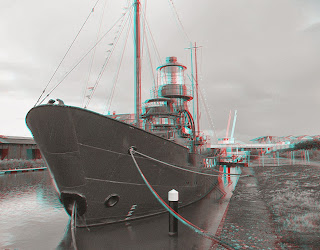
Well, no, you can do it for free with the phone or camera you have right now.

Let's just jump straight in and explain how. For this example we will use a location where not many people are around. The anaglyph example image shown here was actually my first try a few years ago at doing this with a 2D camera but it serves as a good example of what even a novice can achieve on their first try.

Pick a location, or just snap a pic of your laptop or tv, after all it is just to show you how its done.

Take a picture with your choice of digital camera, it doesn't matter whether it is a dslr, phone, tablet, etcetera, just snap one pic then, keeping the camera at the same height move it an inch or so to the right and snap another picture.

There are two easy ways to make the two pictures into 3D, we will look at both here. The most convenient for Android or iOS users is likely to be the free 3Dsteroid / i3Dsteroid app, but first let's check out the method you can use if you have a Windows laptop, tablet or desktop pc.

Stereo Photo Maker is a great, fast all in one tool for making your 2D image into 3D...it can also convert 3D pictures into various alternative 3D formats but we're using it here for its ability to combine two images together.

Click the link above and you'll see, at the top of the web page it opens, a link to download the 3D software. It's really easy, just click the download link on that page and it downloads a zip file to your pc.

Navigate to that folder using Windows explorer and right click your mouse over it so a menu pops up and from there choose the unzip or unpack option (on some computers it will say unarchive or extract).

Unzip the content anywhere you like. It is an executable file (exe), no installation needed - from now on any time you want to use the program simply double click the exe and the software will open (I have it on my desktop as a shortcut).

First things first, get the two pics you took and put them on your computer. If you used a phone you can either plug it in to your pc and transfer the files that way or, if you used a camera, remove the memory card and put it into your pc's memory reader slot (if your pc does not have one they can be bought at many retail outlets and typically cost around five pounds).

Run the windows program program you extracted earlier (called StereoPhotoMaker) and from its FILE menu click "Open Left / Right images". Find the first picture you took and click OPEN or double click the image.

This loads that image in as the left eye view, repeat the process for the second image which we will use as the right eye view. From the softwares STEREO menu click on the type of 3D image you want to make (unless your computer is 3D the best option is to choose Anaglyph and use those funky 3D glasses while editing your picture, you can always change the output format before you save the finished 3D image later).

From the programs ADJUST menu click on "Auto Adjust". It will take a few seconds to analyse the two pictures and then automatically line them up so they make one 3D image, even if the pictures you took were way too far apart this process is good enough to compensate somewhat for that and produce a good true 3D image.

If you want to make the 3D even more pronounced you can do that easily by clicking the ADJUST menu and from there choosing the "Easy Adjustment" option which will let you move the two images closer or further apart to increase or decrease the 3D effect, among other things.

When you are ready to save your image it's easy, just click the FILE menu and choose "Save Stereo Image".

A save box opens up, simply type in a name for your 3D picture and click save to save the image in the format you have been editing it in (eg anaglyph, side by side 3D, etcetera) or if you want to save in standard side by side (sbs) 3D format (the sort almost all 3D devices can display) make sure the save box's "always save sbs format" checkbox is ticked and that way, whatever format you work in, it will still save in side by side format. Otherwise remember to change the 3D format to your chosen one from the STEREO menu before saving.

And there you have it, you have made a 3D photograph. Taking two images with a normal 2D camera has its disadvantages, namely that sometimes if you have reasonably fast objects moving in the foreground or background then they will appear slightly different in each shot.

While you can edit these in free photo editing software such as the Gimp before making them 3D there is a much easier way if you own one of the Samsung devices such as the Galaxy S4 or Note whose camera features an Eraser mode.

If you have such a device, choose Eraser mode before taking your shot and the camera will edit out the moving objects in your pictures. The down side of this is that, unlike normal camera modes, you have to review the picture and click save when you take it.

This can mean your cameras point of view changes a bit between shots, such as being higher in one than the other, but that isn't a problem because the Stereo Photo Maker software will automatically adjust for that and crop your pictures accordingly as needed.

Eraser mode is surprisingly good and in a quick test of it I was able to shoot in the heart of Cardiff at rush hour with plenty of passing traffic and pedestrians and have it remove almost all the moving objects other than a couple of pedestrians. Thankfully the pedestrians were not moving fast enough to ruin the 3D image.

Android and iOS users have an additional free way to do all this, even more easily, on their phones or tablets. 3DSteroid is an excellent free Android application that can take any two images and do exactly what the above Windows software can, only even more easily.

Its iOS counterpart (by the same developer) can be found here.

The free version on each has a few limitations, the paid for version has additional features and is recommended for fans of 3D as it is literally without equal as there is no competing application that offers its abilities other than of course on home computers running Windows.

While this approach works best with landscapes, buildings and somewhat stationary objects the increasing amount of devices featuring an Eraser mode for moving objects (currently mainly those manufactured by Samsung) means that even busy locations and scenes can be shot in 3D using a 2D camera.

The eraser mode works best in scenes where a few cars or people are moving but can handle even city scenes at rush hour surprisingly well so don't be afraid to give it a try. The beauty of this approach, coupled with a camera that can remove moving objects, is that it is now possible to shoot high quality 3D images with your mobile phone thanks to the increased quality of camera phones and the advances in technology within them.

And if rumours that the upcoming Nexus 5 will use a mems lytro like camera are true the future of 3D photography on smartphones and tablets can only get better, the mems camera allows the image to be refocused even after it has been taken - meaning you can take two images and refocus them any way you like before you make them into 3D.

3D is not, as many claim, a dying format. It has been around for as long as photographs have existed and will exist far longer than any of its critics, eighteen percent of tv's sold last year were 3D models and analysts forecast that within the next few years this figure will increase to 3 in 5 televisions sold being 3D.

So, if you have a hankering to try 3D for yourself, you now have a way to do it for free. But be warned, 3D photography can sometimes be addictive.